How to Analyze Instagram with Claude Using MCP
Connect Claude to Instagram insights with SocialGrow MCP. Compare posts, audience and automation results, with prompts and clear data limits.
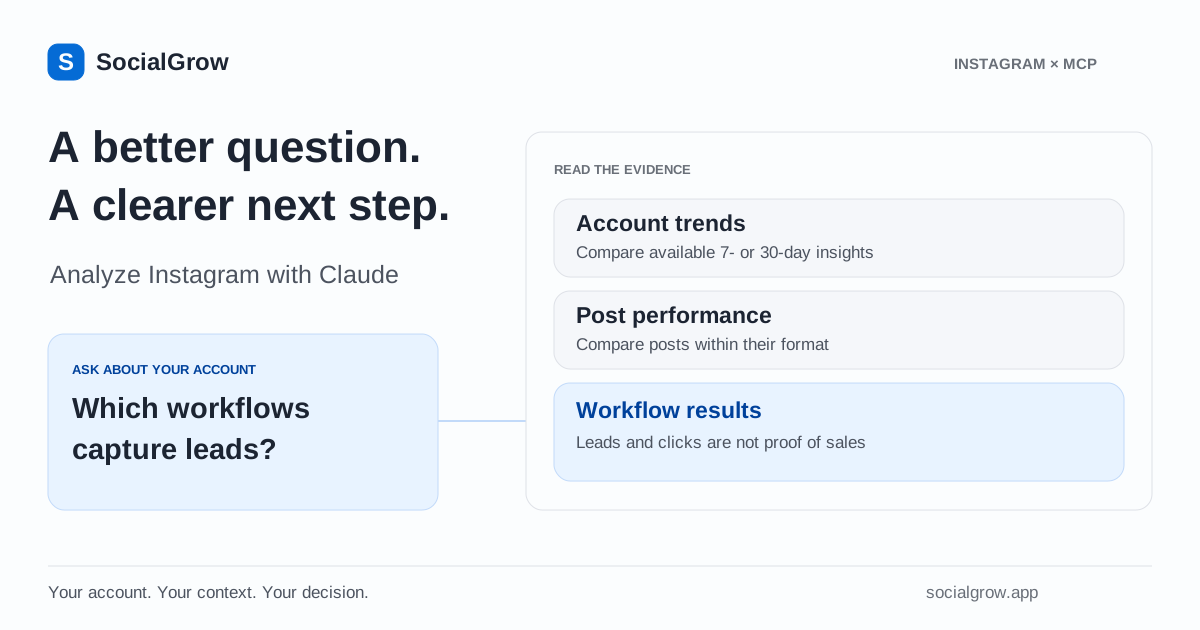
You can analyze your Instagram account in Claude by connecting SocialGrow’s hosted MCP server and authorizing access to your account. Claude can then retrieve account trends, post performance, audience data and tracked automation results through tools, instead of relying on numbers you paste into a chat.
The useful question is what to do next: which content deserves another attempt, which automation captures leads, or what to check before changing an offer. This guide gives you prompts for those decisions and explains where the data stops.
Connect your account first
You need an Instagram Business or Creator account connected to SocialGrow, a paid Pro subscription and a Claude account that supports custom remote connectors. MCP is excluded from the SocialGrow free trial. Access is rolling out to all paid accounts; contact support if AI assistants is not visible in Settings.
Add https://mcp.socialgrow.app/mcp as a custom connector in Claude, then sign in to SocialGrow and review the authorization. Use the public MCP setup guide for the steps and connection checks. The Instagram MCP page lists the supported tools and permissions.
1. Establish the account and time period
Start with a specific account and a defined window:
List my connected Instagram accounts. For the account I choose, compare the last 30 days with the previous period. Show reach, views, engagement and follower change where available. Explain which metrics are missing.
Confirm the account before interpreting the answer, particularly if you manage several profiles. Ask Claude to identify the dates behind the results. SocialGrow account insights sync approximately every six hours; the answer is not a live reading of Instagram.
Look for a change worth investigating. A reach increase alongside fewer leads is a reason to inspect content and offers, rather than evidence that the account is failing.
2. Compare posts within their format
Ask:
Find my top posts in the last 30 days. Compare each against typical posts of the same format and show the available metrics. Separate observations from possible explanations.
SocialGrow’s post tool can rank posts by their performance relative to typical content of the same format. That gives a Reel a more relevant comparison than mixing every format into one raw count.
Read the underlying numbers alongside the explanation. A post about a popular topic might receive more attention, but the tool output alone cannot prove why it performed well. Choose one hypothesis to test in the next post, such as the opening line or the resource offered.
3. Find automations that captured leads
Content metrics and workflow results answer different questions. Ask:
Rank my automations by captured leads. Show their tracked DMs, link clicks and associated posts. Label the time basis for each result and link to the workflows I should review.
The get_automation_performance tool ranks automations using tracked workflow counters. These include lifetime totals. A workflow that has run longer has had more time to accumulate results, so do not describe that ranking as “this month’s best campaigns.”
Use the lead analytics overview to understand the difference between a lead, a tracked action and a purchase. For final sales attribution, match the lead source to your own checkout or booking system.
Worked example: compare two lead-generating workflows
Illustrative data, not customer results or a captured Claude response. This example uses the counters exposed by SocialGrow’s automation tools to show how to check an answer. It does not represent a completed live connection test.
After selecting your connected account, ask:
Use SocialGrow to rank my automations by leads. Show each workflow’s DMs sent, link clicks and lead count. State whether these are lifetime totals, and do not infer sales or a conversion rate from them.
An assistant could organize the returned counters like this:
| Example workflow | DMs sent | Link clicks | Captured leads | Time basis |
|---|---|---|---|---|
| Checklist keyword | 240 | 90 | 36 | Lifetime |
| Workshop keyword | 120 | 55 | 24 | Lifetime |
The checklist workflow has the larger recorded lead count: 36 versus 24. That answers which of these two workflows has accumulated more leads. It does not establish which performed better this week, which audience converted better, or which generated more revenue. Their ages and audiences may differ, clicks need not be unique people, and captured leads are counted per person.
To check your own result, open the assistant’s tool details and compare the workflow’s name, dmsSent, linkClicks and leads with its answer. Ask it to inspect the chosen workflow with get_workflow and return the dashboard link. Review the same workflow in SocialGrow before changing a campaign. Workflows running on any post appear as one combined row, so do not attribute all of that row’s leads to a single Reel.
Then choose a follow-up question that the data can answer:
Show the checklist workflow’s current message and resource link. Help me prepare a new draft to test a different offer. Keep the original unchanged and ask me to confirm the message before saving.
This turns a counter comparison into a reviewable next step. Use your payment or booking records separately to establish sales.
4. Use audience data as a planning input
Try:
Show available audience demographics and hourly follower activity. Suggest two posting windows to test, and tell me what data is missing before making a recommendation.
Audience demographics and activity depend on the data available for your account. An empty result means you need to check availability; it does not mean nobody is online. Treat a suggested posting window as an experiment, rather than a promised engagement increase.
5. Turn the analysis into one reviewable action
Once you have chosen an idea, ask the assistant to prepare a draft:
Help me draft a GUIDE keyword automation for my next post. Ask me for the DM wording and resource URL, then save it as a draft for my review.
Follow the AI automation draft walkthrough to check the result. The assistant cannot activate it. You make that decision in SocialGrow after reviewing the post, keyword, message and link.
What the analysis does and does not establish
| Available evidence | A reasonable next step | What it does not prove |
|---|---|---|
| Account performance across periods | Investigate a change in reach or engagement | The cause of that change |
| Post performance by format | Test a content pattern again | A guaranteed result for the next post |
| Tracked workflow leads and clicks | Review an offer or follow-up | Completed sales or revenue |
| Available follower activity | Test a posting window | A universally best time to post |
These prompts are examples, not a completed customer benchmark. Your results depend on account history, supported permissions and the assistant’s interpretation. Ask it to show source metrics and flag uncertainty before making a decision.
Frequently asked questions
Can Claude analyze my Instagram account? +
Claude can use SocialGrow’s remote MCP tools to retrieve supported insights for your connected Instagram professional account after OAuth authorization. You need paid SocialGrow access and a Claude account that supports custom remote connectors.
Can Claude tell me which posts made sales? +
SocialGrow exposes tracked automation results such as leads and link clicks. Those actions do not prove a purchase. Use payment or booking records to establish sales.
Are Instagram metrics in Claude live? +
SocialGrow account insights sync approximately every six hours. Availability depends on account eligibility, permissions and sync history. Automation performance includes lifetime counters.
Related Articles
How to Draft an Instagram DM Automation with AI
Use Claude or another MCP assistant to draft a comment-to-DM campaign. Confirm the keyword, message and link, then review and activate it in SocialGrow.
analyticsHow to Track Instagram Engagement Metrics Like a Pro
Master Instagram engagement metrics tracking. Learn which metrics matter, how to measure them, and tools to monitor your Instagram performance.
analyticsInstagram Analytics Tools for Creators and SMBs
Compare Instagram analytics tools for creators and small businesses. Find the right way to track reach, engagement, content performance, and growth.
Ask about your own Instagram results
Explore SocialGrow’s Instagram MCP tools and paid Pro access. MCP is excluded from the free trial and is rolling out to paid accounts.
Explore Instagram MCP