How to Draft an Instagram DM Automation with AI
Use Claude or another MCP assistant to draft a comment-to-DM campaign. Confirm the keyword, message and link, then review and activate it in SocialGrow.
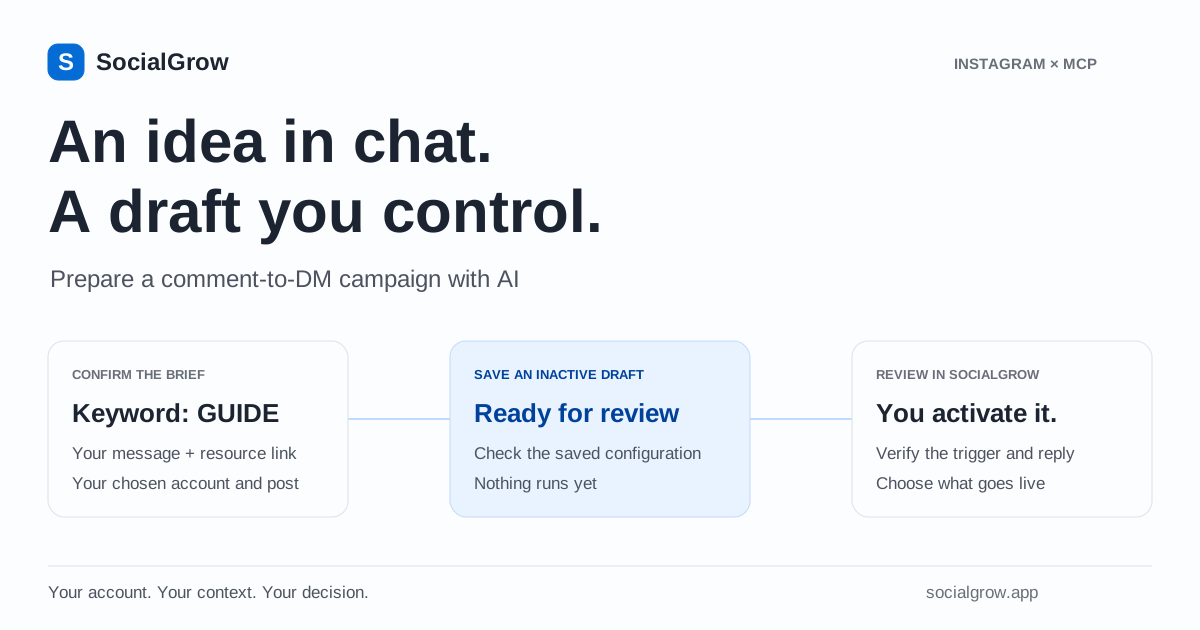
You can ask Claude or another compatible MCP assistant to prepare an Instagram comment-to-DM automation in SocialGrow. It saves an inactive draft. You review the trigger, message and destination in the dashboard, then activate it yourself.
That is useful when you already have a campaign idea and want to turn it into a setup you can inspect. The assistant needs your actual keyword, offer and link; a convincing message with an invented destination is not a usable campaign.
Before you begin
Connect an Instagram professional account to SocialGrow and authorize your assistant through the MCP setup guide. SocialGrow MCP requires a paid Pro subscription and is excluded from the free trial. Access is rolling out to paid accounts; contact support if Settings → AI assistants is missing.
The examples below work as briefs for a compatible assistant. Exact wording and approval prompts depend on your client. See the Instagram MCP overview for supported actions.
1. Choose a post, keyword and resource
Prepare four pieces of information:
- The connected Instagram account to use.
- An existing post, or your next post.
- The keyword people should comment, such as GUIDE.
- Your DM wording and the real destination URL for an optional button.
Choose a resource that matches the post’s promise. If the caption offers a checklist, the DM should explain how to access that checklist. See the comment-to-DM product guide for the broader workflow.
2. Ask the assistant to confirm the brief
Use a prompt like this:
Draft a comment-to-DM automation for my next Instagram post. Use the keyword GUIDE. Ask me to provide and confirm the DM wording and resource link before saving. Include an “Open guide” link button. Save it as an inactive draft.
The assistant should resolve the account and confirm your post, keyword and message before calling create_workflow_draft. Review what it proposes. Tell it to leave the URL unset until you supply the correct one, rather than guessing a resource address.
An example DM is: “Here’s the checklist I mentioned. Tap Open guide to view it.” This is illustrative copy; replace it with wording appropriate to your offer and audience.
3. Review the saved draft in SocialGrow
Open the review link returned by the assistant and check:
| Field | What to verify |
|---|---|
| Account and post | The intended profile and existing or next post are selected. |
| Trigger | The keyword matches your caption. An any-comment trigger is intentional if used. |
| DM | The message delivers what your post promised. |
| Link button | The label is clear and the destination opens the intended resource. |
| Public reply | Any optional comment reply suits your campaign. |
| Status | The workflow remains a draft until you choose to activate it. |
New MCP-created drafts support comment triggers, keywords, a DM, an optional link button and public replies. Set up advanced options such as follow checks, product cards, lead capture or other trigger types in SocialGrow where applicable.
What a saved draft returns
After create_workflow_draft succeeds, SocialGrow returns the saved workflow’s ID, name, draft status, a review link, any warnings and a note about activation. The assistant’s wording may vary; the saved result is what you should verify.
| Returned field | What to do with it |
|---|---|
workflowId and name | Confirm which saved workflow you are reviewing. |
status | Check that it is draft; saving does not activate it. |
reviewAndActivate | Open the returned SocialGrow URL to inspect the configuration. |
warnings | Resolve any reported issues before activating, especially on a copied workflow. |
These are the product’s response fields, not a screenshot or transcript of a live assistant session. For example, a campaign using GUIDE, a DM of “Here is the checklist you requested” and your own confirmed resource URL should produce an inactive workflow you can inspect in the dashboard. If the assistant only writes a proposed message in chat, ask whether it actually saved a draft and returned its review link.
In the dashboard, verify the keyword, message and button URL against your confirmed brief. Leave the workflow inactive if the fields differ or the review link is missing. An assistant saying “done” is not enough to establish that the draft was saved correctly.
4. Activate it yourself and verify the behavior
Once the configuration is ready, activate it in SocialGrow. The MCP tools cannot activate the workflow, edit a live automation or send a DM directly.
After activation, check an eligible test event and inspect workflow activity. Delivery still depends on supported events, account permissions and Meta’s current messaging rules. Saving a draft successfully does not establish that a later message was delivered.
If the workflow captures contact information, review the consent wording and handling in the dashboard before enabling that behavior. The new-draft MCP tool does not configure an entire advanced lead-capture sequence.
Copy an existing automation as a draft
For a repeat campaign, ask:
Find my existing guide automation and show me its setup. Copy it as a new draft for my next post. Confirm the new keyword, message and link with me. Keep the original unchanged.
SocialGrow exposes duplicate_workflow_as_draft for this task. Review the returned draft and any warnings, especially if the original uses advanced settings. A copied setup still needs a manual check that the offer, links and post selection are correct for the new campaign.
Measure what happens after activation
Ask your assistant to show the reviewed workflow’s tracked triggers, DMs, link clicks and leads where available. These counters help you spot whether people are responding and taking the next step. They do not establish sales by themselves.
Use the Instagram analytics with Claude guide to interpret those results. Compare the time basis carefully: account insights can use a period, while automation performance includes lifetime totals.
The practical loop is simple: choose an offer, prepare a draft, review it, activate it, then inspect the results before changing the next campaign.
Frequently asked questions
Can Claude create an Instagram DM automation? +
Through SocialGrow MCP, a compatible assistant can create a comment-to-DM automation draft or copy an existing automation into a draft. You must review and activate it in SocialGrow before it runs.
Can the AI send Instagram DMs directly? +
The current SocialGrow MCP tools do not send messages or activate automations. After you activate a reviewed workflow in the dashboard, SocialGrow processes eligible events under that workflow’s settings and Meta rules.
Is AI draft creation available in the free trial? +
No. MCP requires a paid SocialGrow subscription. Access is rolling out to all paid accounts. Your assistant must also support custom remote MCP connections.
Related Articles
How to Send Product Links in Instagram DMs with Product Cards
Auto-send swipeable product cards with a photo, name, and Shop button when someone comments a keyword. Works with Amazon, Flipkart, and affiliate links.
automationInstagram Auto-Reply Message Examples for Creators and Small Businesses
Copy-paste Instagram DM examples: auto replies, quick (saved) replies, and comment-to-DM messages for prices, bookings, links, and FAQs.
automationFollow-Gated DM on Instagram: Meaning + Setup Guide
Learn what a follow-gated DM means, how Instagram follow checks work, what to measure, and how to turn high-intent replies into qualified leads.
Prepare your next campaign with your AI assistant
Read about SocialGrow MCP, supported tools and paid access. You review every draft before it goes live.
See Instagram MCP and pricing